13. Other Topics
13.1. License Retrieval
THOR offers more flexible ways to retrieve licenses in addition to the classic approach of placing a license file in the program folder. This chapter describes both available license retrieval options.
These two options also work with THOR Remote. In that case, all licenses are downloaded to the host that runs the initial THOR Remote command. The system running THOR Remote itself does not need a license.
Important
If a valid THOR license for the host is already present in THOR's program folder, no new license will be downloaded or issued from the remote source.
13.1.1. ASGARD License Retrieval
If you have a local ASGARD Management Center instance and use its
license pool for THOR scans, you can use the --asgard flag to
download a valid license. This also requires the --asgard-token
flag. The token can be found in the Download section of your
ASGARD Management Center.
Example:
nextron@unix:~/thor$ ./thor-linux-64 --asgard "my-asgard.local" --asgard-token "download-token"
[...SNIP...]
Info License file found LICENSE: my-asgard.local OWNER: John Doe TYPE: Server STARTS: 2023/08/30 EXPIRES: 2023/11/01 SCANNER: THOR VALID: true REASON:
The retrieved license is placed in THOR's program folder so that you
can run THOR next time without the extra flags. The file name is
<hostname>.lic. Rerunning the command does not issue a new license;
it downloads the already valid license again from your ASGARD
Management Center.
13.1.2. Nextron Portal License Retrieval
If you use standalone THOR packages, you can speed up deployment by
using the --portal-key flag. This allows you to download a THOR
license directly from the Licensing Portal without having to generate
and download licenses manually first. This is a practical way to
automate scanning.
The --portal-key argument accepts one of the following values:
The API key of your portal user
A download token for one of your contracts
When using an API key, THOR retrieves the first available license from
the contract with the lowest ID and issues it to your host. No new
license is issued if a valid license is already available for the host.
If no valid license is found, a new one is issued. If you want to limit
license issuance or downloads to specific contracts, provide the
--portal-contracts flag.
Example:
nextron@unix:~/thor$ ./thor-linux-64 --portal-key "my-api-key" --portal-contracts "3,5,12,13"
...SNIP...
Info License file found LICENSE: portal.nextron-systems.com OWNER: Jane Doe TYPE: Server STARTS: 2023/03/10 EXPIRES: 2023/09/29 SCANNER: THOR VALID: true REASON:
The retrieved license is placed in THOR's program folder so that you
can run THOR next time without the extra flags. The file name is
<hostname>.lic. Rerunning the command does not issue a new license;
it downloads the already valid license again from the portal.
Attention
If no valid license is found, a new one will be issued. This can be
prevented with the --portal-nonewlic flag. If THOR can't find a
valid license within the account/contracts, it will simply exit.
This is a useful feature if you want to prevent over-issuing of
licenses within your contracts.
13.2. Evidence Collection
13.2.1. Process Memory Dumps (--dump-procs)
Since THOR version 10.5 it supports process dumping to backup volatile malware information.
THOR on Windows creates a process dump of any process that is considered malicious. Maliciousness is determined as anything that triggers a warning or an alert.
Activate process memory dumping with --dump-procs.
This process dump can then be analyzed with standard tools later on to examine the found malware.
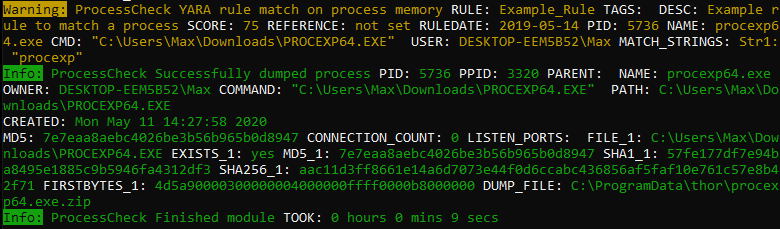
Process dumping
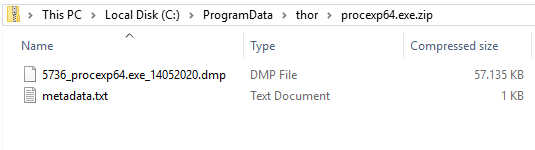
Process dumps on disk
To prevent flooding the disk fully in case many dumps are created, old dumps of a process are overwritten if a new dump is generated. Also, THOR will not generate dumps by default if less than 5 GB disk space is available. This can be overwritten to always or never dump malicious processes.
Also note that THOR will never dump lsass.exe to prevent these dumps from potentially being used to extract passwords by any attackers.
13.2.2. File Collection (Bifrost v2)
Bifrost v2 cannot be used standalone yet. The required API Key is set by ASGARD v2 during initialization and is unknown to a THOR user.
You can activate the quarantine function via Bifrost v2 when creating a single or group scan via the ASGARD management interface.
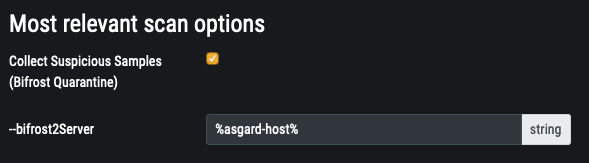
Configure Quarantine via Bifrost in New Scan Dialogue
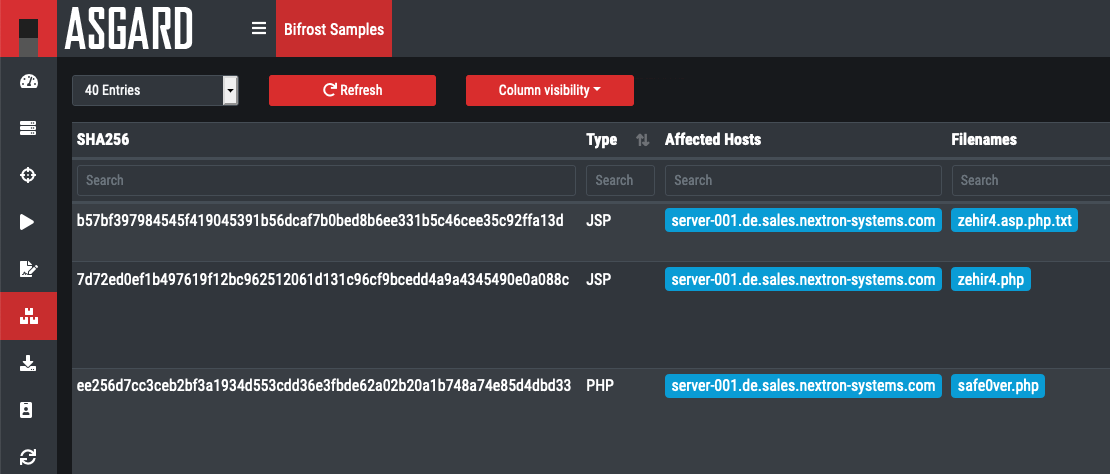
Collected File Evidence in ASGARD v2
13.3. Resource Control
THOR's internal resource control feature puts the system's stability and the responsiveness of running services first.
Resource control is active by default. You can deactivate it using --norescontrol.
Be advised that due to Resource Control, the THOR scan may terminate before completion. The scan gets terminated under the following conditions:
If the available physical memory drops below 50 MB
- If more than 60 MB of log data have been written (disk / syslog)In this case, THOR switches in the "reduced-logging" mode in which it only transmits "Notices, Warnings and Alerts" and after another 4 MB of log data THOR terminates itself in order to prevent log flooding due to a high number of false positives
If the scan constantly terminates you should check what causes the performance issues or choose times with less workload (e.g. weekends, night). To debug such states, you can check the last warning that THOR generates before exiting the scan. It includes the top memory consumers that could have caused the memory exhaustion.

Resource Control Scan Termination
Warning
Deactivating Resource Control on systems with exhausted resources can put the system's stability at risk.
13.3.1. Automatic Soft Mode
Soft mode is automatically activated on systems with low hardware resources.
One of the following conditions activates soft mode:
Less than 2 CPU cores
Less than 1024 MB of RAM
In Soft mode several checks and features that could risk system's stability or could provoke an Antivirus or HIDS to intervene with the scanner are disabled. See Scan Modes for a complete overview.
13.4. Scoring System
The scoring system is one of THOR's most prominent features. Both YARA signatures and filename IOCs contain a score field. The score is an integer value that can be negative to reduce the score on elements that are prone to false positives.
Only YARA rules and Filename IOCs support a user defined score. But since you are able to write YARA rules for almost every module, the scoring system is very flexible.
The total score of an element determines the level/severity of the resulting log message.
Score |
Level |
Condition |
|---|---|---|
>= 40 |
Notice |
|
>= 60 |
Warning |
|
> 80 |
Alert |
At least 1 sub score more than 75 |
Note
As of THOR version 10.7, we reworked the scoring system to only use scores between 0 and 100. The score is a metric that expresses a combination of confidence and severity in percent. This means a finding with a score of 95 can be seen as a severe finding with a high confidence. Exceptions might be - as always - obvious false positives like unencrypted or in-memory AV signatures.
13.4.1. Scoring per Signature Type Match
Type |
Score |
|---|---|
YARA match |
Defined in the meta data of the YARA rule as integer value (e.g. "score = 50") |
Filename IOC match |
Defined in the 2nd field of the CSV (e.g. |
Keyword IOC match |
"warning" level messages, see Default Scores |
C2 IOC match |
"warning" and "alert" level massages, see Default Scores |
13.4.2. Accumulated Scores
If an element has multiple sub-scores, all sub-scores will be accumulated and calculated into one final score. Below you can see how those scores are calculated.
Most modules and features summarize via reasons. Please keep in mind that
only positive scores and the top two reasons are shown by default. You can
use --max-reasons to change how many reasons you want to show (example:
--max-reasons 5 to show 5 reasons).
Reason scores are not added up for the total score. Instead, given a number of scores (s_0, s_1, ...) that are ordered descending. The total score is calculated with the following formula:
100 * (1 - (1 - s_0 / 100 / 2^0) * (1 - s_1 / 100 / 2^1) * (1 - s_2 / 100 / 2^2) * ...)
This means, scores are "capped" at a maximum of 100, and multiple lower scores are weighted far less.
You can use python to calculate the score and try the formula. Please note that we use an example with five sub-scores and no sub-score higher than the threshold of 75 to turn classify this as an alert:
subscore0 = 1 - 70 / 100 / pow(2, 0)
subscore1 = 1 - 70 / 100 / pow(2, 1)
subscore2 = 1 - 50 / 100 / pow(2, 2)
subscore3 = 1 - 40 / 100 / pow(2, 3)
subscore4 = 1 - 40 / 100 / pow(2, 4)
score = 100 * (1 - (subscore0 * subscore1 * subscore2 * subscore3 * subscore4))
print(score)
84.195859375
13.4.3. Default Scores
If no score is set in an "alert" or "warning" message, THOR automatically appends a score that corresponds to the message level:
Level |
Score |
|---|---|
Warning |
60 |
Alert |
80 |
13.4.4. Exception: High total score with low sub scores
"Alerts" on file system elements are only generated if one of the sub scores is more than 75.
Before that change, multiple low scoring reasons had led to a score
higher 100 and caused an "Alert" level message although not a single
hard match was included in the "Reasons". A wrong extension, e.g.
.txt for an executable, which is often used by employees to hand
executables through tight mail filters, and a suspicious location, e.g.
C:\Temp\funprog.txt caused an "Alert" level message.
Since version 8.27.2, one of the sub scores that pushes the total score
over 100 has to be more than 75. (internally calculated as "alert_level
- 25" because the user can adjust the alert level via the --alert
parameter)
13.4.5. Exception: Filename IOC Matches
The "Filename IOC Check" is a sub check of the "String Check", which is applied to many elements, like Eventlog messages or Registry keys.
The function checkString() receives a string as input and returns
possible matches.
The string is checked in multiple sub-checks against different signature
lists. The most important sub-checks are checkKeyword() and
checkFilename().
While the checkKeyword() sub-check returns each individual match, the
checkFilename() sub check accumulates the score of all matches and
returns a single total score. It is possible that many different
filename signatures have matched on that string but only one match with
a total score is reported. This is an exception to the usual behavior
where only the "FileScan" module accumulates scores.
13.4.5.1. Filename IOC Matching in String Check Example
Imagine the following filename IOC signatures:
\\nmap.exe;70
\\bin\\nmap.exe;-30
and the following Keyword signature:
nmap.exe
The checkString() function receives the following string from the
Eventlog scan module (here: a Sysmon Eventlog entry):
Process Create:
UtcTime: 20180110 10:22:25.277
ProcessGuid: {c1b49677e9615a5500000010bbc80702}
ProcessId: 3912
Image: C:\\Program Files\\Nmap\\bin\\nmap.exe
CommandLine: nmap.exe
CurrentDirectory: C:\\Windows\\system32\\
User: PROMETHEUS\\user1
LogonGuid: {c1b496771d725a5300000020d4232500}
LogonId: 0x2523d4
TerminalSessionId: 1
IntegrityLevel: High
Hashes: SHA1=F5DC12D658402900A2B01AF2F018D113619B96B8, MD5=9FEA051A9585F2A303D55745B4BF63AA
ParentProcessGuid: {c1b496771d745a530000001057452500}
ParentProcessId: 1036
ParentImage: C:\\Windows\\explorer.exe
ParentCommandLine: C:\\Windows\\Explorer.EXE
The checkString() function would create two messages: 1 "warning" for
the keyword signature and 1 "notice" of the filename IOC signatures.
The keyword IOC matches in the checkKeyword() sub-check and
checkString() returns a match, that generates a "Warning" level
message that automatically receives a score of 75 (see Default Scores).
The filename IOCs would both match on the string in the
checkFilename() sub-check and both scores would be summed up to a total
score of 40 (70 + (-30) = 40), which would generate a "Notice".
13.5. Action on Match
Note
This feature requires a forensic lab license type, which is meant to be used in forensic labs.
The action command allows you define a command that runs whenever THOR encounters a file during "Filescan" that has a certain total score or higher. The default score that triggers the action command (if set) is 40.
The most popular use case for the action command is sample collection.
13.5.1. Action Flags
Parameter |
Description |
|---|---|
--action_command string |
Run this command for each file that has a score greater than the score from |
--action_args strings |
Arguments to pass to the command specified via |
--action_level int |
Only run the command from |
13.5.2. Command Line Use
A typical use would be e.g. to copy a sample to a network share:
C:\Users\nextron>copy %filepath% \\\\server\\share1
To instruct THOR to run this command, you need
C:\nextron\thor>thor64.exe --action_command copy --action_args %filepath% --action_args \\server\share1
13.5.3. Use in a Config File
The ./config folder contains a template for a config file that uses the action commands.
Content of 'tmpl-action.yml':
 1# Action to perform if file has been detected with a score more than the defined 'action_level'
 2# You may use all environment variables that are available on the system, i.e. %COMPUTERNAME%.
 3# Further available meta vars are:
 4# %score% = Score
 5# %file% = Filename without extension
 6# %filename% = Basename
 7# %filepath% = Full path
 8# %ext% = Extension without dot
 9# %md5% = MD5 value
10# %date% = Detection time stamp
11
12action_level: 35
13action_command: "copy"
14action_args:
15- "%filepath%"
16- "\\\\VBOXSVR\\Downloads\\restore_files\\%COMPUTERNAME%_%md5%_%file%_%ext%_%date%"
13.6. THOR DB
This simple SQLite database is created by default in the
"%ProgramData%\thor" (Linux, macOS: /var/lib/thor/) directory as "thor10.db".
You can deactivate THOR DB and all its features by using the --nothordb flag.
It stores persistent information over several scan runs:
Scan State Information
This information is used to resume scan runs where they were stopped
Delta Comparison
This detection feature allows to compare the result of a former module check with the current results and indicate suspicious changes between scan runs
The THOR DB related command line options are:
Parameter |
Description |
|---|---|
--nothordb |
Disables THOR DB completely. All related features will be disabled as well. |
--dbfile [string] |
Allows to define a location of the THOR database file. File names or path names are allowed. If a path is given, the database file |
--resume |
Resumes a previous scan (if scan state information is still available and the exact same command line arguments are used) |
--resumeonly |
Only resume a scan if a scan state is available. Do not run a full scan if no scan state can be found. |
13.6.1. Resume a Scan
THOR tries to resume a scan when you set the --resume parameter.
Since THOR version 10.5 the resume state doesn't get tracked by default
due to its significant performance implications. If you want to be able
to resume a scan, you have to start scans with the --resume flag. If
you start a scan and a previous resume state is present, then THOR is
going to resume the interrupted scan.
It will only resume the previous scan if
You have started the scan with
--resumeThe argument list is exactly the same as in the first scan attempt
You haven't used the flag
--nothordbScan state information is still available in THOR DB (could have been cleared by running THOR a second time without the
--resumeparameter)
You can always clear the resume state and discard an old state by
running thor.exe once without using the --resume parameter.
13.6.2. Delta Comparison
The delta comparison feature allows comparing former scan results on a system with the current results, indicating changes in system configurations and system components.
Currently, the following scan modules feature the delta comparison check:
Autoruns
THOR compares the output of the Autoruns module with the output of the last scan run. The Autoruns module does not only check "Autorun" locations but also elements like browser plugins, drivers, LSA providers, WMI objects and scheduled tasks.
Services
The comparison detects new service entries and reports them.
Hosts
New or changed entries in the "hosts" file could indicate system manipulations by attackers to block certain security functions or intercept connections.
13.7. Archive Scan
The Archive Scan feature supports the following archive types:
ZIP
RAR
TAR
TAR + GZIP (.tar.gz)
TAR + BZIP2 (.tar.bz2)
GZIP
7ZIP
CAB