15. Debugging
Most unexpected behavior can be investigated by using the --debug
parameter.
This can be useful if you encounter a situation in which:
THOR doesn't produce an alert on a known malicious element
THOR exits with an error
THOR takes a long time or unexpected short time on elements
15.1. Collecting a Diagnostics Pack
THOR Util comes with the functionality to collect a diagnostics pack for THOR scans. This is helpful if a scan is taking longer than expected or if THOR exits unexpectedly. More details can be found in the diagnostics section of THOR Util.
15.2. Debugging Examples
If you identified the element that causes the issue, try scanning that
specific element with --debug enabled.
To run a scan with only specific modules, use the --module (short
form -a) command-line switch (see Scan Module Names for
a full list of module names):
C:\nextron\thor>thor64.exe -a Mutex
C:\nextron\thor>thor64.exe -a FileScan
C:\nextron\thor>thor64.exe -a Eventlog
Hint
You can specify multiple modules:
C:\nextron\thor>thor64.exe -a Mutex -a EnvCheck -a Users
You can reduce the scope of a module even further by using lookback parameters:
C:\nextron\thor>thor64.exe -a Eventlog --lookback 3
C:\nextron\thor>thor64.exe -a FileScan -p C:\Windows\System32 --global-lookback --lookback 1
To find out why a certain file couldn't be detected, use
--debug with --printall and try to switch into --intense mode.
C:\nextron\thor>thor64.exe -a Filescan -p C:\testfolder --debug --printall
C:\nextron\thor>thor64.exe -a Filescan -p C:\testfolder --debug --printall --intense
If it has been detected in --intense mode but not in default mode,
the file extension or the magic header is most likely the problem.
You can adjust max_file_size in ./config/thor.yml or add a
magic header in ./signatures/misc/file-type-signatures.cfg.
15.3. Finding Bottlenecks
You may encounter the message MODULE: RuntimeWatcher MESSAGE:
Maximum runtime has exceeded, killing THOR or notice that a scan is
very slow or does not seem to finish.
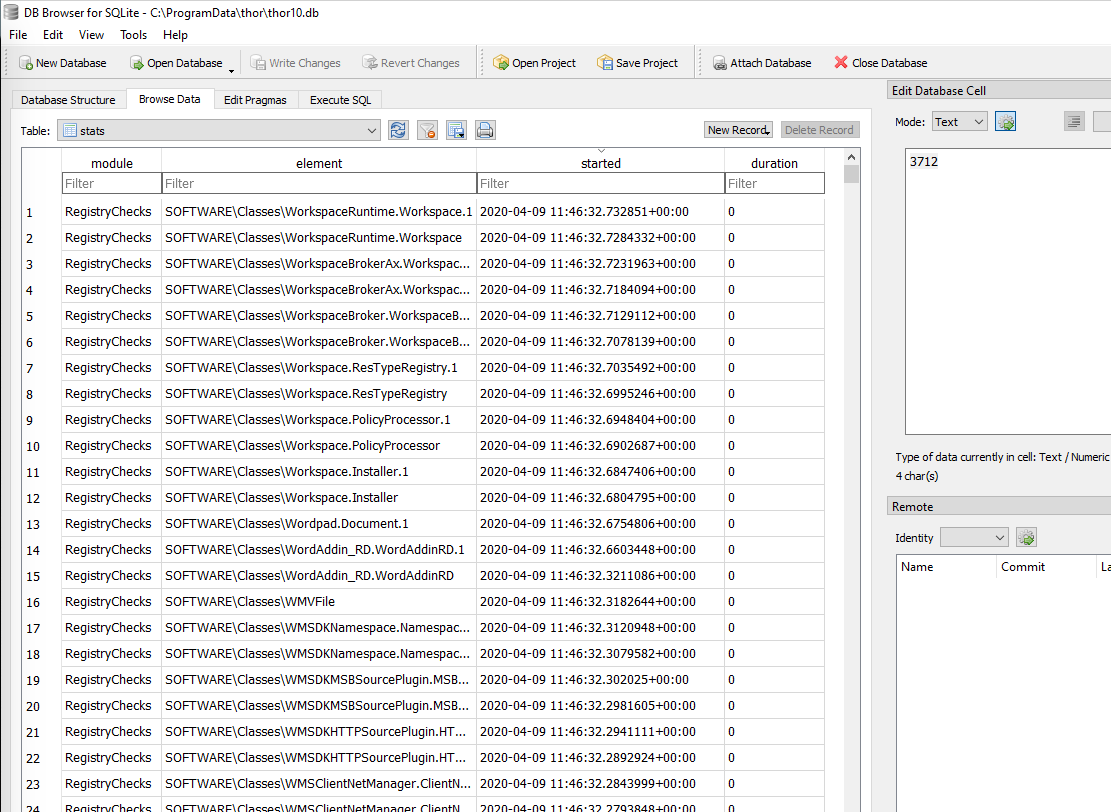
You can check the statistics table in thor10.db on the affected
endpoint after a scan to determine the last element or elements that
took a long time to process.
We recommend using DB Browser for SQLite.
On Windows, the THOR DB is located at C:\ProgramData\thor\thor10.db.
15.4. Most Frequent Causes of Missing Alerts
Below are some of the most common reasons why expected alerts may be missing.
15.4.1. THOR did not scan a file because of file size restrictions
Solution: Use the --max_file_size parameter or set it permanently
in the config file ./config/thor.yml.
C:\nextron\thor>thor64.exe --max_file_size 206233600 # setting max file size to 200 MB
 1# This is the default config for THOR
 2# Skip files bigger than 31457280 bytes
 3max_file_size: 31457280
 4# Skip files bigger than 209715200 bytes in intense mode (--lab, --intense)
 5max_file_size_intense: 209715200
 6# Terminate THOR if he runs longer than 168 hours
 7max_runtime: 168
 8# Limit THOR's CPU usage to 95%
 9cpulimit: 95
10# The minimum amount of free physical memory to proceed (in MB)
11minmem: 50
12# Minimum score to report is 40
13min: 40
14# Truncate THOR's field values after 2048 characters
15truncate: 2048
15.4.2. THOR did not scan a file because deeper inspection was skipped
This usually happens when both of the following are true:
The file's magic header is not in the list of interesting magic headers (see
./signatures/misc/file-type-signatures.cfg).The file does not have a relevant file extension.
Relevant file extensions include:
.asp, .vbs, .ps, .ps1, .rar, .tmp, .bas, .bat, .chm, .cmd, .com, .cpl, .crt, .dll,
.exe, .hta, .js, .lnk, .msc, .ocx, .pcd, .pif, .pot, .pdf, .reg, .scr, .sct, .sys,
.url, .vb, .vbe, .vbs, .wsc, .wsf, .wsh, .ct, .t, .input, .war, .jsp, .php, .asp,
.aspx, .doc, .docx, .pdf, .xls, .xlsx, .ppt, .pptx, .tmp, .log, .dump, .pwd, .w,
.txt, .conf, .cfg, .conf, .config, .psd1, .psm1, .ps1xml, .clixml, .psc1, .pssc,
.pl, .www, .rdp, .jar, .docm, .ace, .job, .temp, .plg, .asm
Solution: Use an intense scanning mode for that folder (--intense)
or add the magic header to file-type-signatures.cfg
Warning
This file gets overwritten with an update; Intense scanning mode threatens the scan and system stability!
15.4.3. THOR does not initialize custom rules with the correct type
Users who prepare custom IOCs or YARA rules often forget to include the correct keyword in the filename of the IOC or YARA rule file.
The correct use of keywords is described in the chapters Simple IOCs for IOCs and Specific YARA Rules for YARA rules.
A wrong or missing keyword can lead to situations in which a file
contains YARA rules meant for log files, but its filename does not
contain the keyword log.
You can verify correct initialization in the command-line output or log file.
Info Adding rule set from my-log-rules.yar as 'log' type
Using the keyword c2 in a filename for C2 IOCs should result in a
line like the following:
Info Reading iocs from /tmp/thor10/custom-signatures/iocs/my-c2-iocs.txt as 'domains' type
15.5. Most Frequent Causes of Frozen Scans
If THOR stops or appears to pause without a traceback, panic message, or other error output:
Usually the following sources are responsible (in descending order of frequency):
An Antivirus or EDR suspends THOR (>98%)
A "paused" command line window due to Windows Quick Edit Mode (<1%)
A Constant High System Load that causes THOR to stay back and wait for an idling CPU (<1%)
The Perception of a Stalled Scan, which is actually running (<1%)
15.5.1. Antivirus or EDR suspends THOR
In more than 98% of the cases, an Antivirus or EDR is responsible for a stalled process. Especially McAfee AV/EDR is a well-known source of issues. This is caused by the different dialogues in which exceptions have to be defined and the fact certain kinds of blocks cannot be found in any logs.
If a THOR scans stalls in one of these modules, an Antivirus or EDR interaction is highly likely:
Mutex
Events
NamedPipes
ShimCache
ProcessCheck
Solution: Review all possible exclusions in your AV / EDR and add the THOR folder to the exclusion list
15.5.2. Windows Quick Edit Mode
Since Windows 10, the Windows command line window has the so-called "Quick Edit Mode" enabled by default. This mode causes a behavior that can lead to a paused THOR scan process. Whenever a user switches the active windows from the cmd.exe to a different application, e.g. Windows Explorer, and clicks back into the command line window, the running process automatically gets suspended. A user has to press "Enter" to resume the suspended process. As the progress indicator of THOR isn't always changing, this could lead to the impression that the scan paused by itself.
Solution: Press "Enter" in the command line window
15.5.3. Constant High System Load
Since THOR automatically sets a low process priority a scan can slow down to a level that appears to be paused or suspended on systems that are under a constant high load.
Solution: You can avoid this behaviour by using the --nolowprio flag. Be aware
that scans on a system with a constant high CPU load take longer than on other systems
and could slow down the processes that would otherwise take all the CPU capacity.
15.5.4. The Perception of a Stalled Scan
Under certain circumstances the scan may appear stalled but is still running. What we usually recommend in cases like this is:
Press CTRL+C to get into the interrupt prompt and check the currently scanned element.
Continue the scan.
Wait 30 minutes.
Press CTRL+C again and check if it still scans the same element.
Solution:
There are 3 possible outcomes:
It scans the same element: try to find out why (huge log file, huge registry hive)? Exclude it.
It scans elements in a particular folder for a long time: try to find out why (folder with many logs, folder with many files)? Exclude it.
It doesn't scan the same element or a particular folder: check the disk content, disk I/O, number of threads used, process monitor, external hard drive speed?
15.6. Most Frequent Causes of Failed Scans
The following examples are the most frequent causes of a failed scan.
15.6.1. External Processes Terminating THOR
Whenever THOR dies without any traceback or panic message and no error message in the log file, an external process terminated the THOR process.
Usually the four following sources are responsible (descending order, by frequency):
Antivirus or EDR killed the THOR process
A user killed the THOR process
A management solution that noticed a high CPU load caused by the THOR process killed it
Attackers killed the THOR process
Note
A process termination that always happens at the same element is a sign for an Antivirus or EDR detection.
15.6.2. Insufficient Free Memory
If the system you are trying to scan runs out of free memory, you will encounter the following message in your scan log:
fatal error: out of memory
Probable causes:
Other processes consume a lot of memory
THOR's scanning of certain elements requires a lot of memory
You've set ulimit values that are too restrictive
You are using the wrong THOR version for your architecture
You've activated a feature that consumes a lot of memory (e.g.
--mftor--intense)
Whenever THOR recognizes a low amount of free memory, it checks the top three memory consumers on the system and includes them in the log message, before exiting the scan.
You could try running THOR in Soft Mode (--soft), which will deactivate
modules and features that require a lot of memory.
Using the 32bit binary of THOR named thor.exe on a 64bit system
can lead to interrupted scans with the above error message. The 32bit binary
is not able to address as much memory as the 64bit version. Always make
sure to use the correct THOR version for the respective architecture.
Several ulimits might cause THOR to terminate if they are too restrictive, including:
locked-in-memory size
address space
number of open file descriptors
maximum data size
If you are certain your machine has sufficient RAM, check your ulimits with ulimit -a
and try to rerun the scan with increased limits, if necessary.
The man page for the ulimits
configuration size gives a full overview over the limits and how to persistently modify them.
15.7. Help Us With The Debugging
If you cannot find the source of a problem, please contact us using the support@nextron-systems.com email address.
You can help us find and debug the problem as quickly as possible by providing the following information.
15.7.1. Which THOR version do you use?
Tell us the exact THOR version you are using:
For which operating system (Windows, Linux, macOS)
For which architecture (32bit, 64bit)
Run THOR only with the --version flag and copy the resulting text into
the ticket.
THOR 10.7.20
Build 0527b35 (2025-02-17 14:31:26) (linux, amd64)
YARA 4.5.0
PE-Sieve 0.3.5
OpenSSL 3.0.9
Signature Database 2025/03/11-064342
Sigma Database r2025-02-03-23-g3ce034bb2
15.7.2. What is the target platform that THOR fails on?
Please provide the output of the following commands.
On Windows:
C:\Users\user>systeminfo > systeminfo.txt
On Linux:
user@desktop:~$ uname -a > uname.txt
On macOS:
user@macos:~$ system_profiler -detailLevel mini > system_profile.txt
15.7.3. Which command line arguments do you use?
Please provide a complete list of command line arguments that you've used when the error occurred.
C:\thor>thor64.exe --quick -e D:\logs -p C:\Windows\System32
15.7.4. Provide the log of a scan with the --debug flag
The most important element is a scan log of a scan with the --debug
flag used.
The easiest way is to run the scan exactly as you've run it when the
problem occurred adding the --debug command line flag.
C:\thor>thor64.exe --quick -e D:\logs -p C:\Windows\System32 --debug
If you're able to pinpoint the error to a certain module, you could limit the scan to that module to get to the problematic element more quickly.
C:\thor>thor64.exe -a Rootkit --debug
After the scan you will find the normal text log (*.txt) in the program folder. It is okay to replace confidential information like the hostname or IP addresses.
Note: The debug log files can be pretty big, so please compress the file before
submitting it to us. Normal log files have a size between 1 and 4 MB. Scans started
with the --debug flag typically have sizes of 30-200 MB. The compression ratio is
typically between 2-4%, so a compressed file shouldn't be larger than 10 MB.
15.7.5. Provide a Screenshot (Optional)
Sometimes errors lead to panics of the executables, which causes the situation in which relevant log lines don't appear in the log file. In these cases, please also create a screenshot of a panic shown in the command line window.
15.7.6. Provide the THOR database (Optional)
The THOR DB helps us debug situations in which
the THOR scan timed out or didn't complete at all. It contains statistics on the
run time of all used modules and the durations of all folders up to the second
folder level from the root of a partition. (e.g. C:\Windows\SysWow64).
The default location of that file is:
Windows:
C:\ProgramData\thor\thor10.dbLinux/macOS:
/var/lib/thor/thor10.db
Please provide that file in situations in which:
THOR exceeded its maximum run time
THOR froze and didn't complete a scan for days
THOR scans take too long for the selected scan targets
15.7.7. Further Notes
If the files are too big to send, even after compression, please contact us and you'll receive a file upload link that you can use
If a certain file or element (eventlog, registry hive) caused the issue, please check if you can provide that file or element for our analysis, as those files can contain sensitive information.