9. Configuration
9.1. Scan Templates
THOR accepts YAML-based configuration files, referred to as "templates". They map to THOR's command-line options and provide a flexible way to define scan settings.
This means that every parameter that can be set on the command line can also be provided in a configuration file. You can also combine multiple template files in a single scan run.
9.1.1. Default Template
THOR always applies the default file named thor.yml in the
./config subfolder. Additional config files can be applied with the
-t command-line parameter. If the same option is set in both
thor.yml and a custom template, the value from thor.yml always
takes precedence.
9.1.2. Apply Custom Scan Templates
The following command applies a custom scan template named
mythor.yml.
C:\nextron\thor>thor.exe -t config\mythor.yml
9.1.3. Example Templates
The default config file thor.yml in the ./config folder has the
following content:
 1# This is the default config for THOR
 2# Terminate THOR if he runs longer than 72 hours
 3max_runtime: 72
 4# Minimum score to report is 40
 5min: 40
 6# Skip files bigger than 12000000 bytes
 7max_file_size: 12000000
 8# Skip files bigger than 30000000 bytes in intense mode (--fsonly, --intense)
 9max_file_size_intense: 30000000
10# Limit THOR's CPU usage to 95%
11cpulimit: 95
12# The minimum amount of free physical memory to proceed (in MB)
13minmem: 50
14# Truncate THOR's field values after 2048 characters
15truncate: 2048
Example content of a custom config file mythor.yml:
1resume: true
2cpulimit: 40
3intense: true
4max_file_size: 7500000
5syslog:
6   - foo.nextron
7   - bar.nextron:514:TCP
The default scan template is always applied first. Custom templates can
then override settings from the default template. In the example above,
the cpulimit and max_file_size parameters are overridden by the
custom template.
As shown in the example file, template files must use the long form of
the command-line parameters (for example syslog), not the short
form (for example -s). You can look up the long forms in the
command-line help with --help.
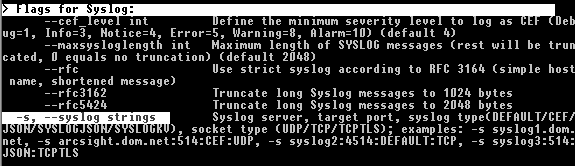
Lookup command line parameter long forms using --help
9.2. CPU Limit (--cpulimit) Explained
The --cpulimit argument helps prevent THOR from overloading your
system's CPU. Here is how it works:
This argument takes a number (default: 95, minimum: 15).
The number represents the percentage of total CPU power that, if exceeded, will cause THOR to pause.
It considers the entire CPU, not just individual processor cores.
If your system's CPU is constantly under heavy load (above the --cpulimit
value), THOR will pause its scanning. Once CPU usage drops below the limit,
THOR will resume automatically.
For example, if --cpulimit is set to 40:
Total CPU Usage |
THOR Status |
|---|---|
20 % |
Running normally |
80 % (other programs using CPU) |
Paused (waiting) |
30 % |
Running normally |
Important
If you check CPU usage using
top, you might see THOR using more than 100%. This is normal due to how CPU usage is measured. See Irix Mode in topThis setting does not slow down THOR — it only ensures THOR doesn't interfere with other programs by pausing when CPU usage is high.
Setting --cpulimit to a low value is often used in systems which are
idle for a long period of time, but sporadically do CPU heavy work. THOR
was designed to keep the system's stability as the top priority, so in
most cases you don't have to change this setting if you are concerned about
the stability of your system you are trying to scan.
9.3. Maximum File Size
The default maximum file size for content checks (hash calculation and YARA scanning)
is 30 MB. The maximum file size for the --intense scan mode is 200 MB.
You can adjust the values in ./config/thor.yml. This file does not
get overwritten by an update or upgrade.
Special scan features like the EVTX or Memory Dump scan ignore these limits.
Features that obey the file size limit:
YARA Matching
Hash calculation
STIX IOC application
ArchiveScan
Features that ignore the file size limit:
LogScan
RegistryHive scanning
EVTX scanning
DeepDive on memory dumps (selected by .dmp and magic headers)
Filename IOCs
YARA meta rules (only check the first 100 bytes of a file and all meta data)
If the --intense flag is used, a different file size limit is applied.
The only exception is ArchiveScan (e.g. ZIP file analysis) that has no file size limit in intense scan.
9.3.1. Chunk Size in DeepDive
The chunk size in DeepDive module is set to the value defined as maximum file size. DeepDive uses overlapping chunks of this size for YARA rule scanning.
Example: If the maximum file size is set to a default of 12 MB, DeepDive use the following chunks in its scan to apply the YARA rule set:
Chunk 1: Offset 0 – 12
Chunk 2: Offset 6 – 18
Chunk 3: Offset 12 – 24
Chunk 4: Offset 18 – 30
9.4. Exclude Elements
9.4.1. Files and Directories
You may use the file directory-excludes.cfg to exclude directories
and files(! The name of the config file is misleading) from the scan.
THOR will not scan the contents of these directories. This
directory-excludes.cfg config is meant to avoid scanning
sensitive files like databases or directories with a lot of content. If
you want to suppress false positives that are generated in these
directories, please see the following chapter and how to suppress them
by using false_positive_filters.cfg.
The exclusion file contains regular expressions that are applied to each
scanned element. Each element consists of the file path and file name
(e.g. C:\IBM\temp_tools\custom.exe). If one of the defined
expressions matches, the element is excluded. Exclusions can be defined
for a full element name, at the beginning at the end or somewhere in the
element name.
Note
If used in combination with flags like --virtual-map that change the
original path on the filesystem, the
exclusions are applied to the real path on the filesystem, not the
original path.
For example, when using --virtual-map F:C and
scanning a file located at F:\Windows\explorer.exe,
THOR will check if F:\Windows\explorer.exe is excluded,
not if C:\Windows\explorer.exe is excluded.
As the configured exclusions are treated as regular expressions, special
characters must be masqueraded by backslash. This applies at least for:
[]\^$.\|?\*+()-
Element to exclude |
Possible solution |
|---|---|
C:\IBM\temp_tools\custom.exe |
|
Log folder of the tool "hpsm" regardless on the partition |
|
Every file with the extension .nsf |
|
THOR custom signatures |
|
SQL database |
|
9.4.2. Eventlogs
Eventlog sources can be excluded as whole in
"eventlog-excludes.cfg". The file holds one expression per line
and applies them as regular expression on the name of the Eventlog.
(e.g. Microsoft-Windows-Windows Defender/Operational)
Element to exclude |
Possible solution |
|---|---|
Windows PowerShell |
Windows PowerShell |
Microsoft-Windows-Windows Defender/Operational |
Windows Defender |
9.4.3. Registry
Registry paths/keys can be excluded in registry-excludes.cfg.
The file holds one expression per line and applies them as regular
expression on each registry key. (e.g. “Software\WOW6432Node“). Don't
include the root of the key, e.g. HKLM.
Element to exclude |
Exclude Definition |
|---|---|
|
Symantec Endpoint Protection\AV\Exclusions |
9.4.4. False Positives
The false positive filters work like the directory/file excludes. A
regular expression is applied to the full event, excluding the event
header (e.g. Sep 14 12:07:07 some-hostname/192.168.0.20).
E.g. if you want to Exclude all messages that contain the string
Trojan_Buzus_dev you just add this string to the
false_positive_filters.cfg file. The file works with regular
expressions so you could also define something like
chinese_(charcode|keyboard).
9.4.5. Filter Verification
If you are unsure about the filters you just set, we recommend a test run on a certain directory that matches the criteria.
You can start a short test run on a certain directory with:
C:\nextron\thor>thor.exe -a FileScan --intense -p C:\\TestDir
9.4.6. Personal Information
THOR features an option named --suppresspi that allows to filter the output
messages and replace all known locations and fields that can contain
user names or user ids with the value ANONYMIZED_BY_THOR.
What it does is:
Replace all "USER" and "OWNER" field values of all modules with the anonymized string value
Replaced the subfolder names of
C:\UsersandC:\Documents and Settingswith the anonymized string value
There is no guarantee that all user IDs will be removed by the filter, as they may appear in the most unexpected locations, but in most cases this approach is sufficient to comply with data protection requirements.